



 View original
Today, dane101 announces a new ongoing feature in conjunction with our flickr site. MadThemes offers a chance for local photographers to share their photos with Madison while hopefully inspiring folks to look up, look down, get close or search out that perfect color, anything to get more great shots of our wonderful city.
The premise of MadThemes: Each week, we will post a new discussion thread on our flickr group naming the weekly theme as well as announcing it on dane101. Photos to be submitted for the week should be added to this thread (instruction on how to do it below the fold and on the original flickr thread). All shots should ideally be taken in Madison or Dane County unless abstract in such a way as to render location irrelevant. Photos may be submitted up until early Friday morning at which time, a weekly winner will be announced and have their photo featured on the front page of dane101.
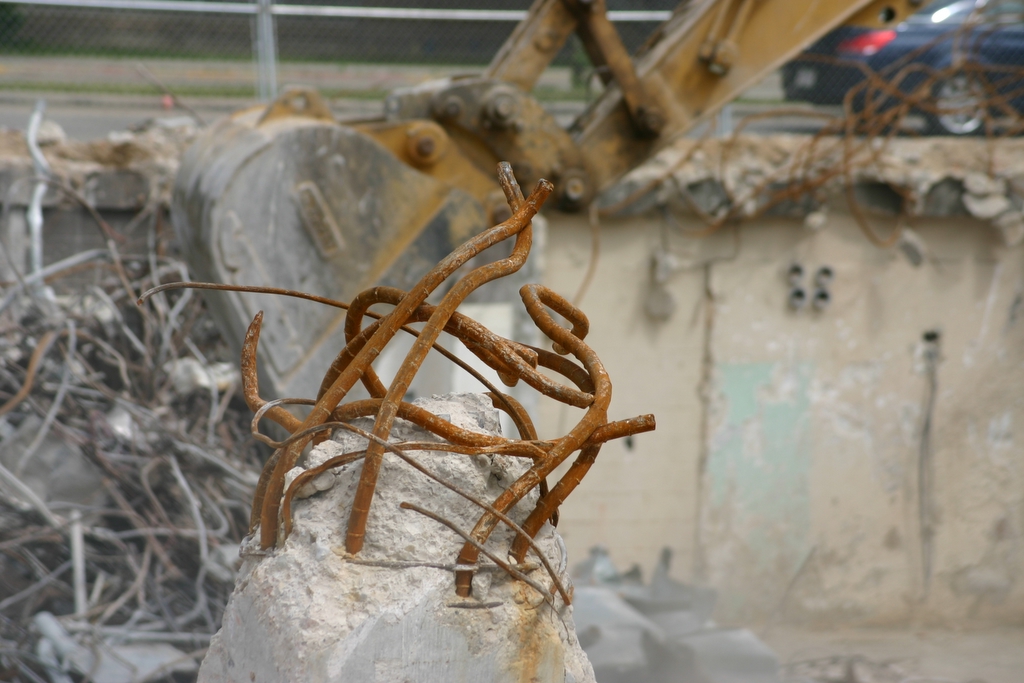
For this week's theme, we'll start out easy. For June 23rd through June 29th, the theme will be: [b]Rust[/b]. Search out that dilapidated boat on Mendota, grab that snap of the birds on Patterson, or find a car that has more rust than paint, whatever you choose. We set the stage for you to act upon.
Those interested in participating should add themselves to the dane101 flickr group and then add their photos to the dane101 photostream as well as adding any to be submitted for the weekly contest into the corresponding week's thread. There are several ways to add it to a thread, all involving some simple html input:
1) For those with the flickr pro account, go to the "all sizes" tab and click on the size nearest to 500x333. Scroll down to where it says:
[quote]To link to this photo on other websites you can either:
1. Copy and paste this HTML into your webpage:[/quote]
Under this you'll see the html that has the code to post your image (the img src=".." part) as well as hyperlinking code (the a href="..." part). Copy this and past it into the week's discussion thread and voila! you should have your image up.
2) The other way requires a bit more typing. What you will need to do is get the the size you want and then view the image (most web browsers allow you to do this by right clicking and selecting "View Image". The url in your address bar is the url for the image. Copy that and then go to the weekly discussion thread and type:
img src="(paste the url right here)" enclosed in brackets, i.e. <>.
Please post any questions, concerns about posting pictures or any general questions to the original thread.